

Majdal Anjar, Bekaa, Lebanon
Available 24/7. Call Us +961 81 456 701 info@leenkat.com- Home
- Leenkat New Tab
- User Guide
Leenkat New Tab - User Guide



Welcome to Leenkat New Tab
Everything you need to get familiar with your workspace and start using Leenkat New Tab effectively.
- Last Updated: 08/09/2026
Understanding Your New Tab Workspace
Get familiar with the main areas of Leenkat New Tab and learn how to access the tools you use every day.
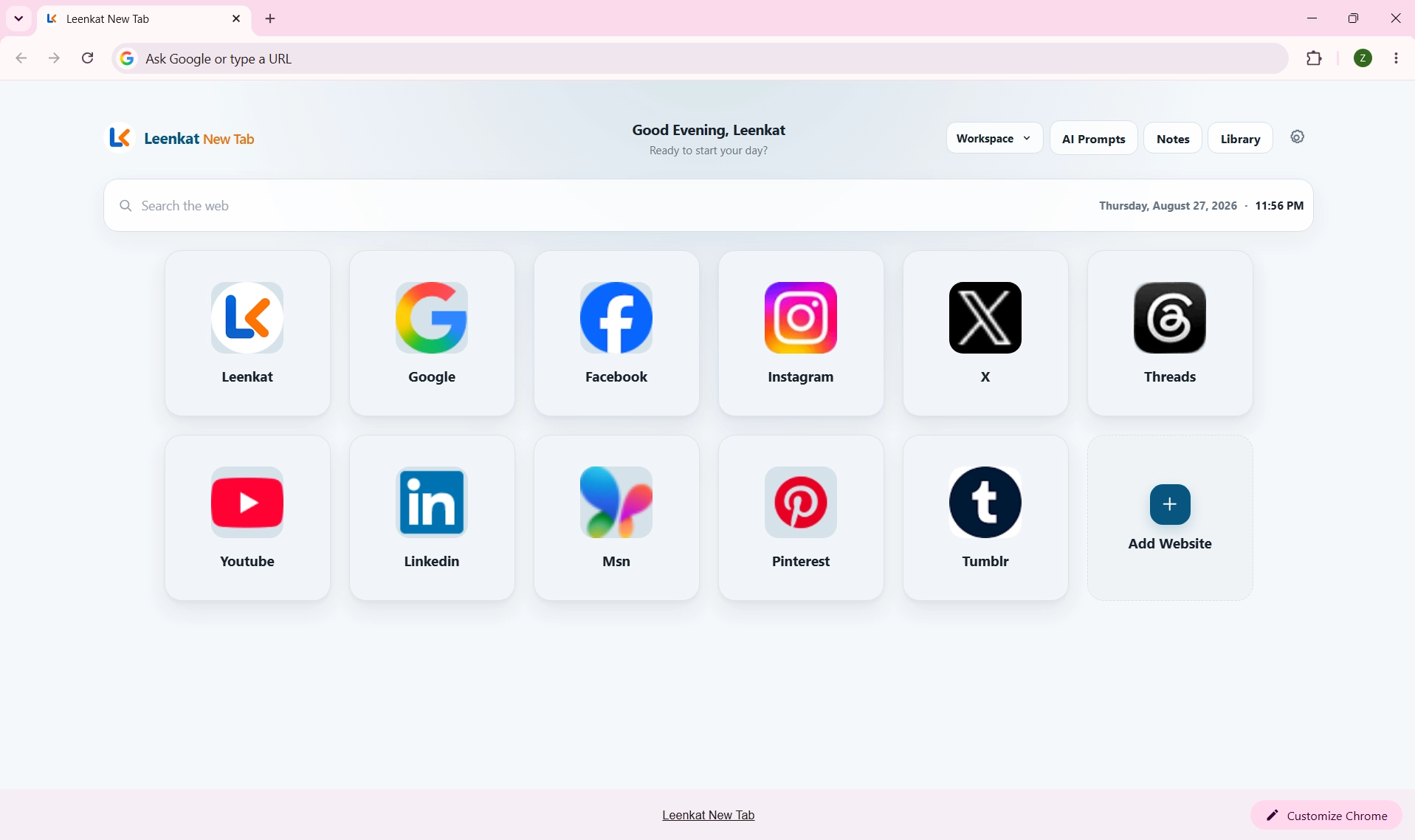
The Home Workspace is the main screen of Leenkat New Tab and the starting point you see whenever you open a new browser tab.
It gives you quick access to your saved websites, web search, Recently Visited websites, and the tools you use to organize and personalize your new tab experience.
From the Home Workspace, you can:
- Access Saved Websites: Open websites directly from their cards.
- Add Websites: Add new website shortcuts directly to the active Workspace.
- Reorder Websites: Drag and drop website cards to arrange them in the order that works best for you.
- Search the Web: Use the search bar and choose your preferred search provider.
- Access Recently Visited: Open the Recent menu to quickly revisit websites from your recent browsing history.
- Switch Workspaces: Move between your available Workspaces and keep different sets of websites organized for different activities.
- Access Productivity Tools: Navigate to Notes, AI Prompts, the Website Library, and other available tools.
- Personalize Your Experience: Open Preferences to customize your Home background, greeting, interface behavior, and other supported settings.
- Customize Your Home Background: Choose how your Home Workspace looks using one of the available background options.
- Default Background: Use the original Leenkat New Tab background.
- Built-in Backgrounds: Choose from the collection of backgrounds included with Leenkat New Tab.
- Solid Color: Select a solid color for a simple and personalized Home Workspace.
- Custom Image: Choose your own PNG, JPEG, or WebP image to use as the Home background. Custom images are stored locally in your browser.
Helpful Note
Changing to another background mode does not automatically delete your stored custom image. If you want to permanently remove the custom image, use the Delete Image option.
Organize Your Browsing with Multiple Workspaces
Create separate Workspaces for different projects, activities, or routines, and keep the websites you need organized and easy to access.
1. Create a Workspace
Open the Workspace menu and choose the option to create a new Workspace. Give it a clear name that reflects how you plan to use it.
2. Switch Between Workspaces
Use the Workspace selector at the top of Leenkat New Tab to move between your available Workspaces. Each Workspace maintains its own website organization.
3. Add Websites to a Workspace
Add new websites directly to the active Workspace, or use Add Existing Website to add a website that already exists in your Library.
4. Reorder Websites Within a Workspace:
Drag and drop website cards to arrange them in the order you prefer. Each Workspace maintains its own website organization.
5. Remove a Website from a Workspace
Removing a website from a Workspace removes only its membership in that Workspace. The website remains saved in your Website Library and available in any other Workspaces where it is used..
6. Reuse Websites Across Workspaces
The same website can be used in multiple Workspaces. You do not need to create duplicate website entries—use Add Existing Website to add an existing Library website to another Workspace.
7. Your Active Workspace Is Remembered
Leenkat New Tab remembers your active Workspace, so your selected Workspace remains available when you open a new tab again.
Adding a Website to Your Workspace
Create a website shortcut and keep the websites you use most within easy reach.
1. Open Add Website
From your Workspace, click the Add Website card to open the website creation dialog.
2. Enter the Website URL
Enter the full address of the website you want to add, such as https://example.com.
3. Enter the Website Name
Add the name you want to display on the website card.
4. Choose a Custom Logo – Optional
If you want to use a specific image for the website, enter a Custom Logo URL. If no custom logo is provided, Leenkat New Tab can use the available website icon or its built-in fallback.
5. Save the Website
Review the information and click Save. The new website card will be added to your Workspace.
6. Reorder the Website:
After adding a website, you can drag and drop its card to place it wherever you prefer within the active Workspace.
Helpful Note
Tip: Use clear, short website names to keep your Workspace easy to scan and organized.
Manage Your Saved Websites
Keep your Workspace organized by editing, duplicating, moving, or removing website shortcuts whenever you need.
Edit Website
Update the website URL, display name, or supported website details.
Duplicate Website
Create a copy of an existing website shortcut that you can modify independently.
Move Website
Move the website to another available location or organizational area supported by Leenkat New Tab.
Remove a Website from a Workspace:
Use Remove from Workspace when you want to remove a website from the active Workspace without deleting it from your Website Library. The website remains available in the Library and in any other Workspaces where it is used.
Delete a Website Permanently:
To permanently delete a saved website, open the Website Library and use the Delete action. Deleting a website from the Library removes the website itself and removes it from any Workspaces where it is used.
Organize and Manage Your Website Collection
Use the Website Library to manage your saved websites and keep your collection organized as it grows.
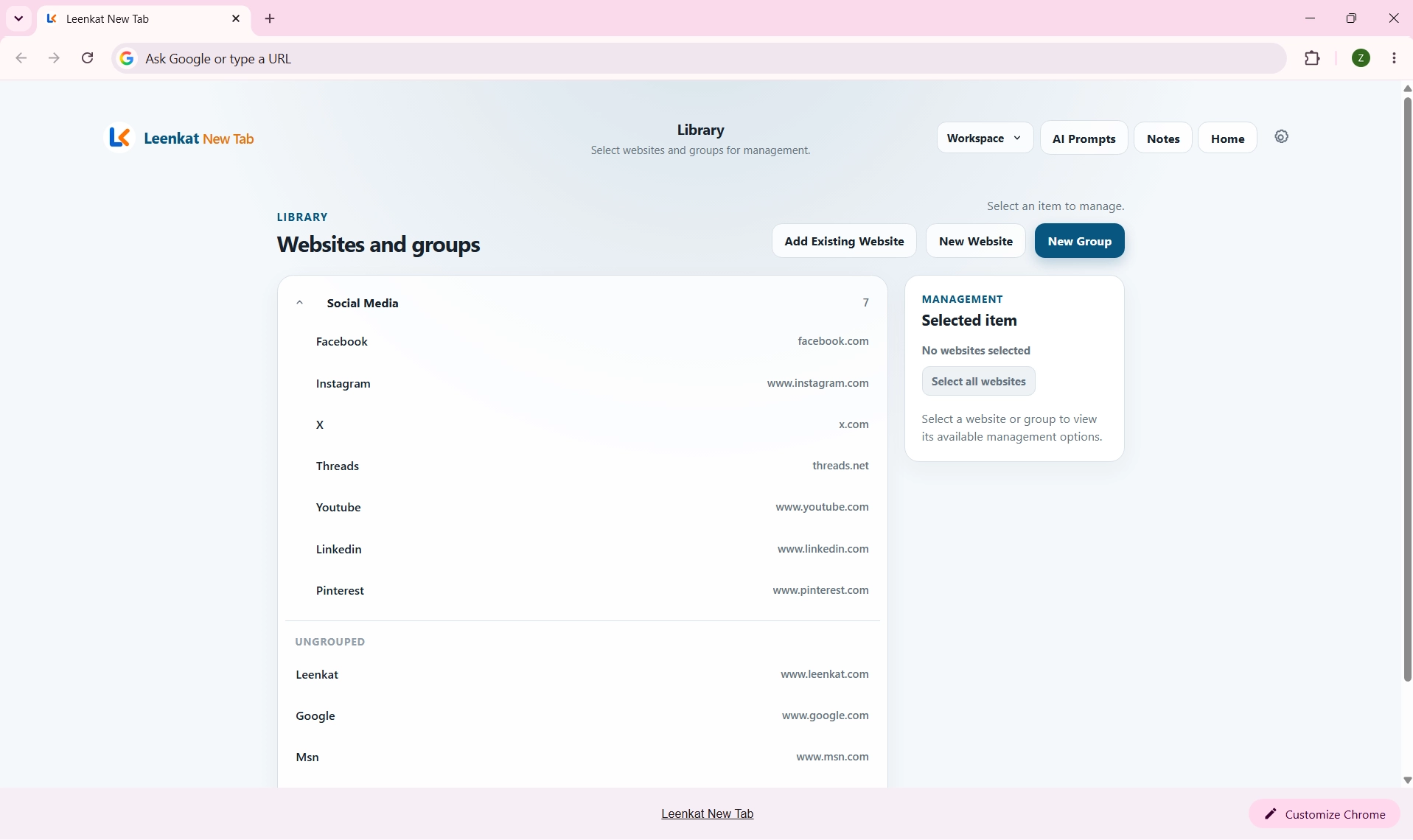
The Website Library provides a dedicated space for managing the websites you have saved in Leenkat New Tab.
While the Workspace is designed for quick everyday access, the Library gives you a more focused place to organize and manage your website collection.
From the Website Library, you can:
- Browse Saved Websites: View the websites stored in your collection.
- Manage Websites: Access the available controls for editing and organizing saved websites.
- Organize Your Collection: Keep larger website collections structured and easier to manage.
- Maintain Your Workspace: Control which websites and organization are used as part of your everyday new tab setup.
- Use Websites Across Workspaces: Add a saved website to multiple Workspaces without creating duplicate website entries. Removing it from one Workspace does not remove it from your Library or other Workspaces.
Delete Websites Permanently: Delete a website from the Library when you no longer want it saved in Leenkat New Tab. Deleting it from the Library also removes it from any Workspaces where it is used.
Search the Web Your Way
Search directly from your new tab and choose the search provider that best fits the way you browse.
Using Search
1. Select the Search Bar
Click the search field at the top of your new tab.
2. Enter Your Search
Type the words or phrase you want to search for.
3. Choose a Search Provider
Use the search provider selector to choose the service you want to use.
4. Start Your Search
Submit your search to open the results through the selected provider.
Available Search Providers
Leenkat New Tab includes support for:
Google · Bing · DuckDuckGo · Brave · Yahoo · Ecosia · Qwant · Startpage · Yandex
Helpful Note
Your search is handled by the search provider you select. The provider’s own privacy policy and terms apply when you use its search service.

Quickly Return to Recently Visited Websites
Access websites from your recent browsing history directly from your new tab without searching for them again.
Using Recently Visited
1. Open Recent
Click Recent at the top of the Home Workspace to open the Recently Visited menu.
2. Browse Recent Websites
Review the available recently visited websites along with their visit information.
3. Open a Website
Select a website from the list to open it. Depending on your preference, recently visited websites can open in the current tab or a new tab.
4. View More History
Use View All History when you want to open Chrome’s full browsing history.
Privacy Note
Recently Visited uses Chrome’s browsing history permission to display recent websites inside Leenkat New Tab. This information is processed locally by the extension and is not sent to Leenkat.
Keep Your Notes Close at Hand
Capture useful information, ideas, and reminders directly within Leenkat New Tab.
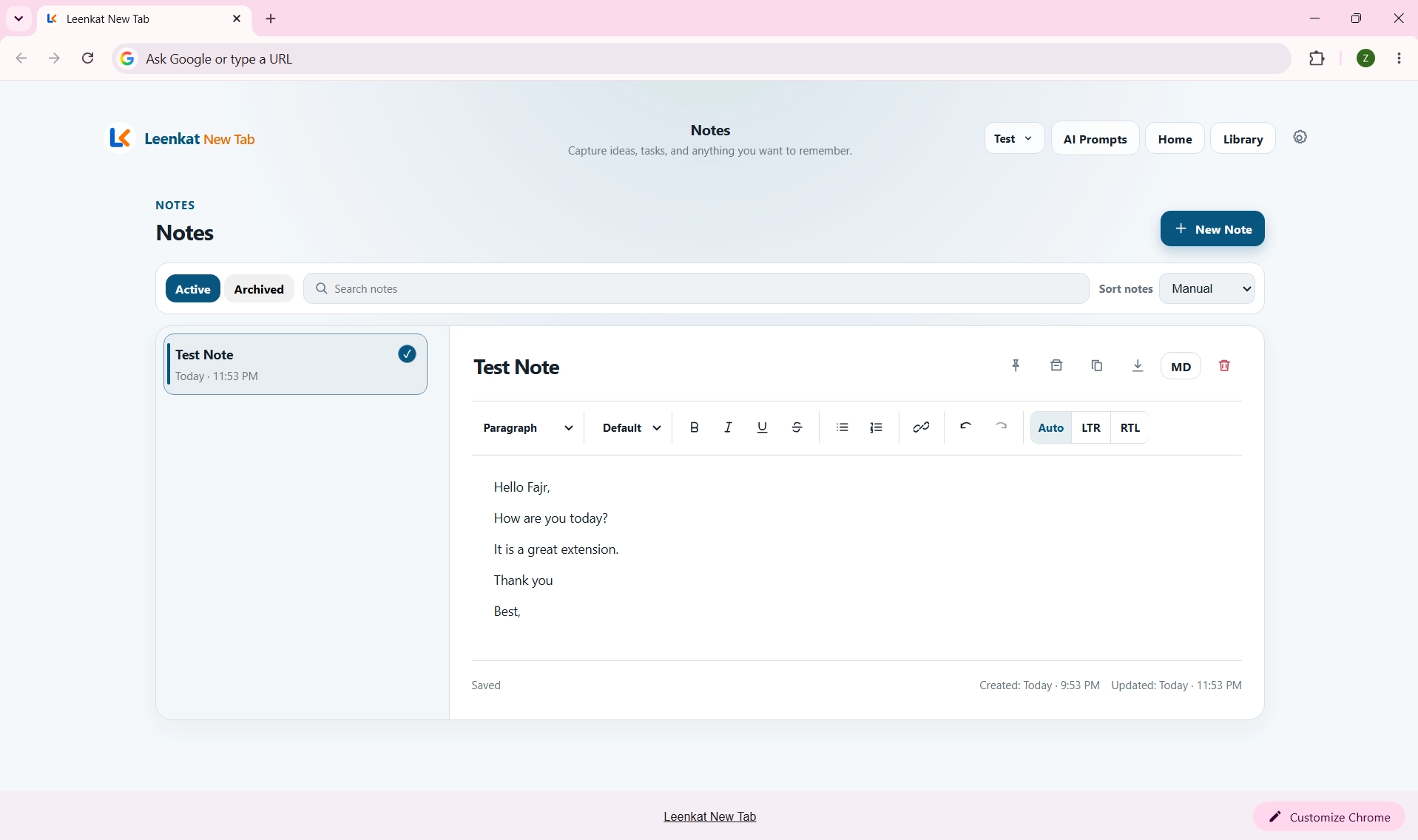
Notes provide a convenient place to keep text you want to access while browsing without leaving your new tab workspace.
You can use Notes for quick reminders, ideas, temporary information, task-related details, or any other text you want to keep available.
Using Notes
1. Open Notes
Navigate to Notes from Leenkat New Tab.
2. Create a Note
Use the available option to create a new note.
3. Add Your Content
Enter the information you want to save.
4. Organize Your Notes:
Use the available organization and management options to keep your notes easy to find as your collection grows.
5. Manage Your Notes
Return to Notes whenever you need to review, update, organize, or remove saved content using the available controls.
Privacy Note
Notes are stored using the extension’s local browser storage. Avoid storing passwords, authentication codes, private keys, or other highly sensitive information in Notes.
Build Your Personal Prompt Library
Save, organize, and quickly access the AI prompts you use regularly without having to recreate them each time.
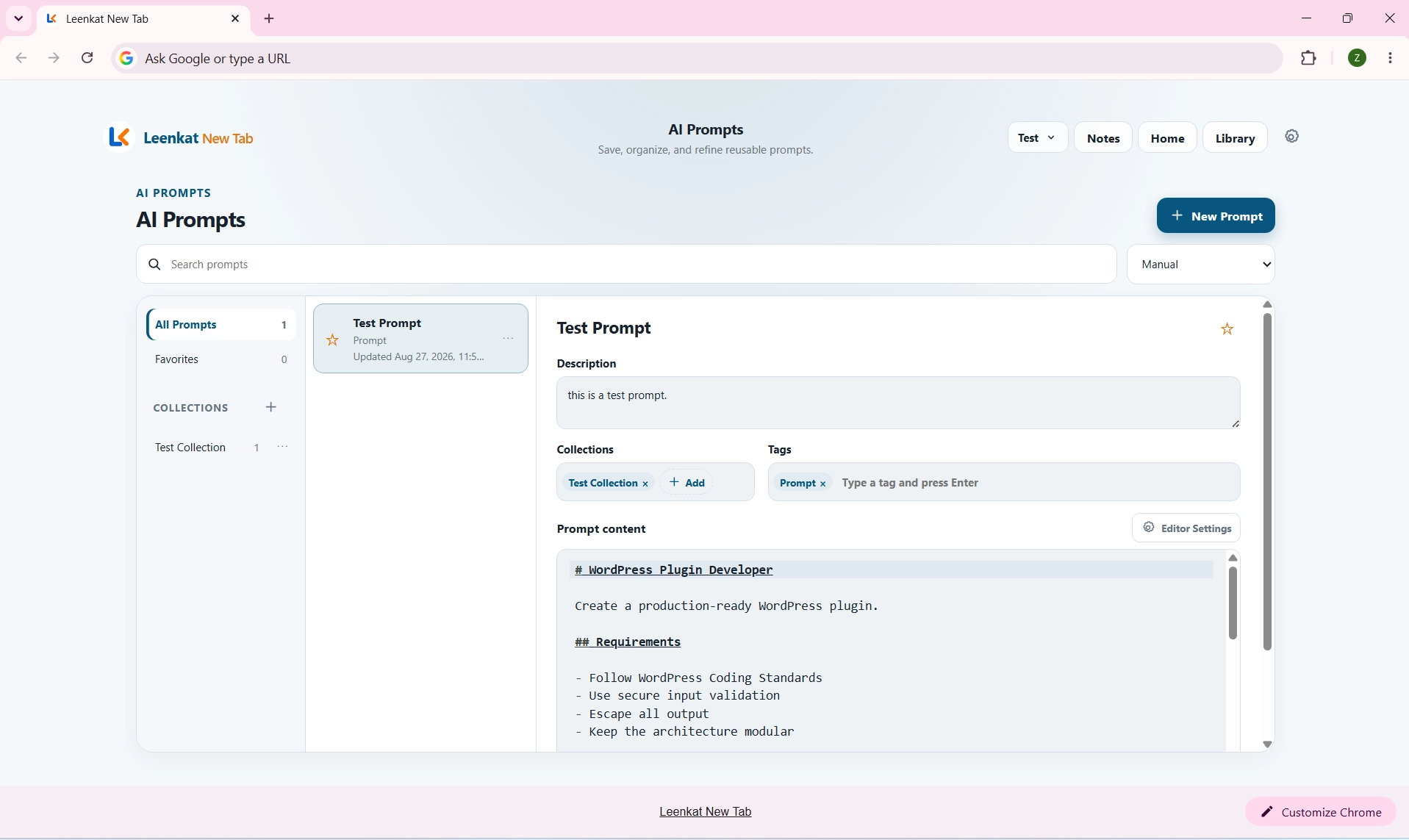
AI Prompts gives you a dedicated space to build and manage a reusable collection of prompts for your everyday AI workflows.
Instead of keeping frequently used prompts in separate documents or rewriting them each time, you can store them in Leenkat New Tab and access them whenever you need them.
Using AI Prompts
1. Open AI Prompts
Navigate to AI Prompts from Leenkat New Tab.
2. Create a Prompt
Select the option to add a new prompt.
3. Add the Prompt Details
Enter a clear title and the prompt content you want to save. Complete any additional fields available for organizing or describing the prompt.
4. Save the Prompt
Save your prompt to add it to your Prompt Library.
5. Use a Saved Prompt
Open a saved prompt whenever you need it and use the available copy action to quickly copy its content for use with your preferred AI service.
6. Manage Your Library
Edit, organize, or delete prompts as your collection evolves.
7. Organize Prompts with Collections and Tags
Use Collections and Tags to organize your saved prompts and make larger prompt libraries easier to manage.
Use Saved Variables in Your Prompts
Saved Variables let you create reusable prompts with values that can be changed when needed instead of rewriting the same information each time.
1. Add a Variable to a Prompt
Use the {{variable}} format inside your prompt content to define information that can be replaced when using the prompt.
2. Save Variable Values
Store values for variables you use regularly so they can be reused across your prompts.
3. Preview Your Prompt
Review the prompt with its variable values applied before copying it.
4. Copy the Completed Prompt
Copy the prepared prompt and use it with your preferred AI service.
Helpful Note
Your prompt library can grow over time. Use Collections, Tags, Favorites, and Saved Variables to keep your prompts organized and make frequently used prompts easier to find, customize, and reuse.
Privacy Note
Saved prompts and variable values are stored using the extension’s local browser storage. Leenkat New Tab itself does not submit this content to an AI service.
Make Leenkat New Tab Your Own
Adjust your preferences to create a new tab experience that feels more personal and works the way you want.
Leenkat New Tab includes personalization options that allow you to customize supported parts of your new tab experience while keeping your settings available across browsing sessions.
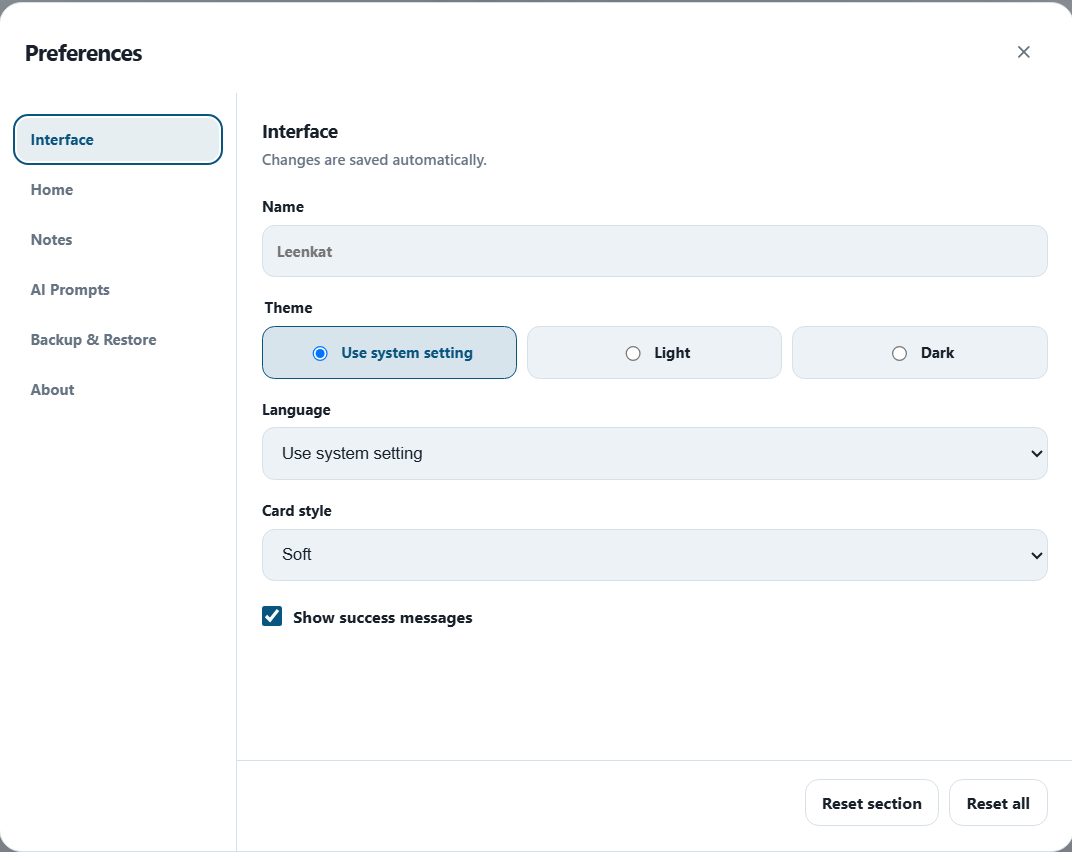
Personalizing Your Experience
1. Open Preferences
Open Preferences from the Leenkat New Tab interface.
2. Personalize Your Greeting
Set the display name used by the personalized greeting. If no custom name is provided, Leenkat New Tab uses Leenkat as the default.
3. Adjust Available Preferences
Review the available settings and configure the options that best suit how you use your new tab.
4. Changes Are Saved Automatically
Preference changes are saved automatically as you adjust the available settings.
Personalized Greeting
Leenkat New Tab automatically adjusts the greeting according to the time of day:
- Good Morning — Before 12:00
- Good Afternoon — From 12:00 to 17:59
- Good Evening — From 18:00 onward
Important Note
Custom background image files are stored locally in your browser and are not included in backup files. If you restore a backup on another installation, you may need to choose your custom background image again.
Backup Recommendation
Create a new backup periodically, especially after making important changes to your Workspaces, Website Library, Notes, AI Prompts, or preferences.
Back Up and Restore Your Data
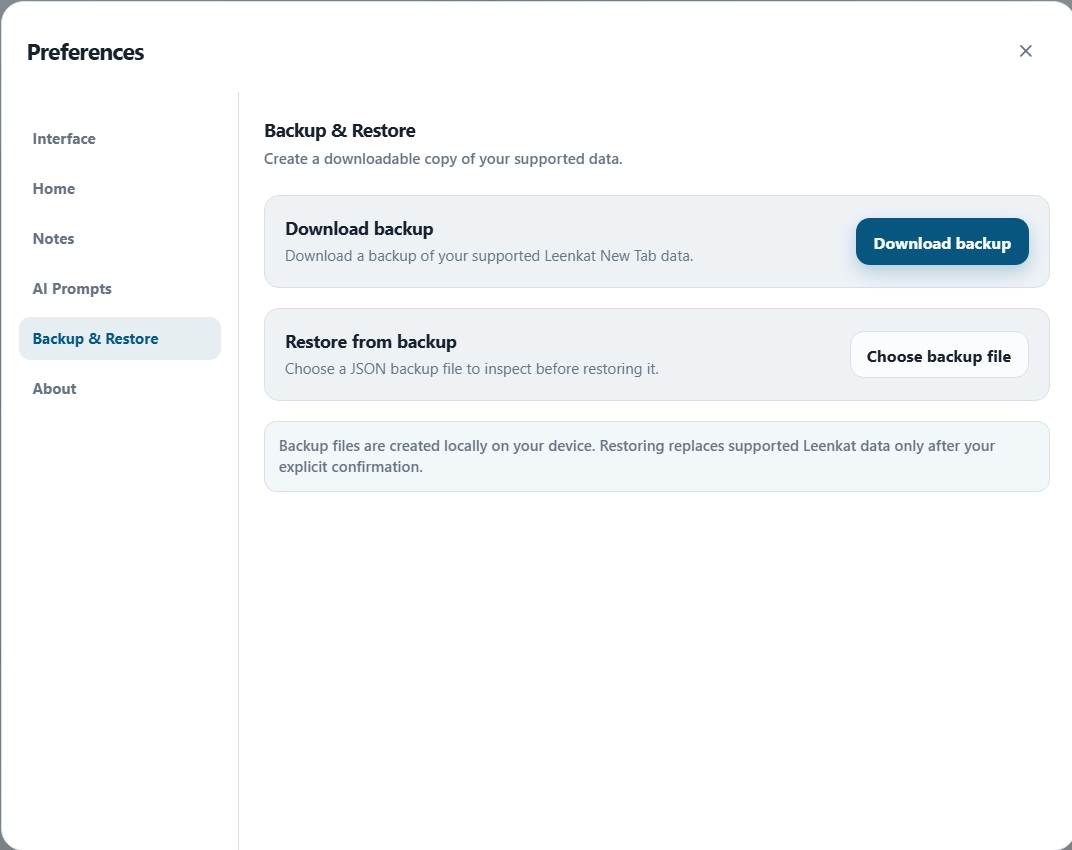
Keep a downloadable copy of your supported Leenkat New Tab data and restore it when needed.
Creating a Backup
1. Open Backup & Restore
Open Preferences and select Backup & Restore.
2. Download Your Backup
Select Download Backup. Leenkat New Tab creates a backup file containing your supported data.
3. Keep the File Safe
Store the downloaded backup somewhere you can access later if you need to restore your setup.
Restoring a Backup
1. Select Restore Backup
Open Backup & Restore and choose Restore Backup.
2. Choose Your Backup File
Select a compatible Leenkat New Tab backup file from your device.
3. Review the Restore Preview
Leenkat New Tab shows a preview before making changes. Review the information carefully.
4. Confirm or Cancel
Choose Cancel to leave your current data unchanged, or Restore Backup to continue.
5. Complete the Restore
After confirmation, the supported Leenkat New Tab data covered by the backup replaces the corresponding current data.
Important
Restoring a backup replaces supported Leenkat New Tab data. Consider downloading a current backup before restoring another file if you may want to return to your present setup.
Only restore backup files that you trust and that were created for Leenkat New Tab.
Need Help with Leenkat New Tab?
Find quick solutions to common issues or report a problem when something isn’t working as expected.
Common Troubleshooting Steps
If Leenkat New Tab is not behaving as expected, try these basic steps before submitting a problem report:
1. Reload the New Tab
Close the affected tab and open a new one to see if the issue persists.
2. Restart Chrome
Close and reopen Google Chrome, then try the affected feature again.
3. Check the Extension
Make sure Leenkat New Tab is installed and enabled in Chrome.
4. Check Your Version
Make sure you are using the latest available version of Leenkat New Tab.
5. Preserve Your Data
If you can access the backup feature, download a current backup before resetting, removing, or reinstalling the extension.
Still Having a Problem?
If the issue continues, use the Report a Problem page and provide as much information as possible, including:
- Leenkat New Tab version
- Chrome version
- Description of the problem
- Steps to reproduce it
- Any relevant error messages
- Screenshots when helpful
Make Every New Tab More Useful
Bring your websites, notes, AI prompts, search, and everyday tools together in one organized workspace with Leenkat New Tab.